
How to Upload Photos to a Shared Google Drive Folder Using the Mobile App
Follow these steps to upload photos from your phone to a shared Google Drive folder.
If you are trying to upload to your google folder via your computer browser see these instructions: Upload using computer browser.
Before You Begin
Make sure you have the Google Drive app installed on your device.
Sign in to your Google account.
Upload Your Photos
Locate the shared folder (1)
Tap the + (plus) button in the lower-right corner of the screen. (2)
Note: If this is your first time uploading, your phone may ask for permission to access your photos. If prompted, select Allow Access to All Photos or Allow More Photos and choose the photos you want Google Drive to access. (3)

Select Photos and Videos (or your device's photo library). (1)
Choose the photo(s) you would like to upload. (2)
Tap Upload or Done (depending on your device). (3)
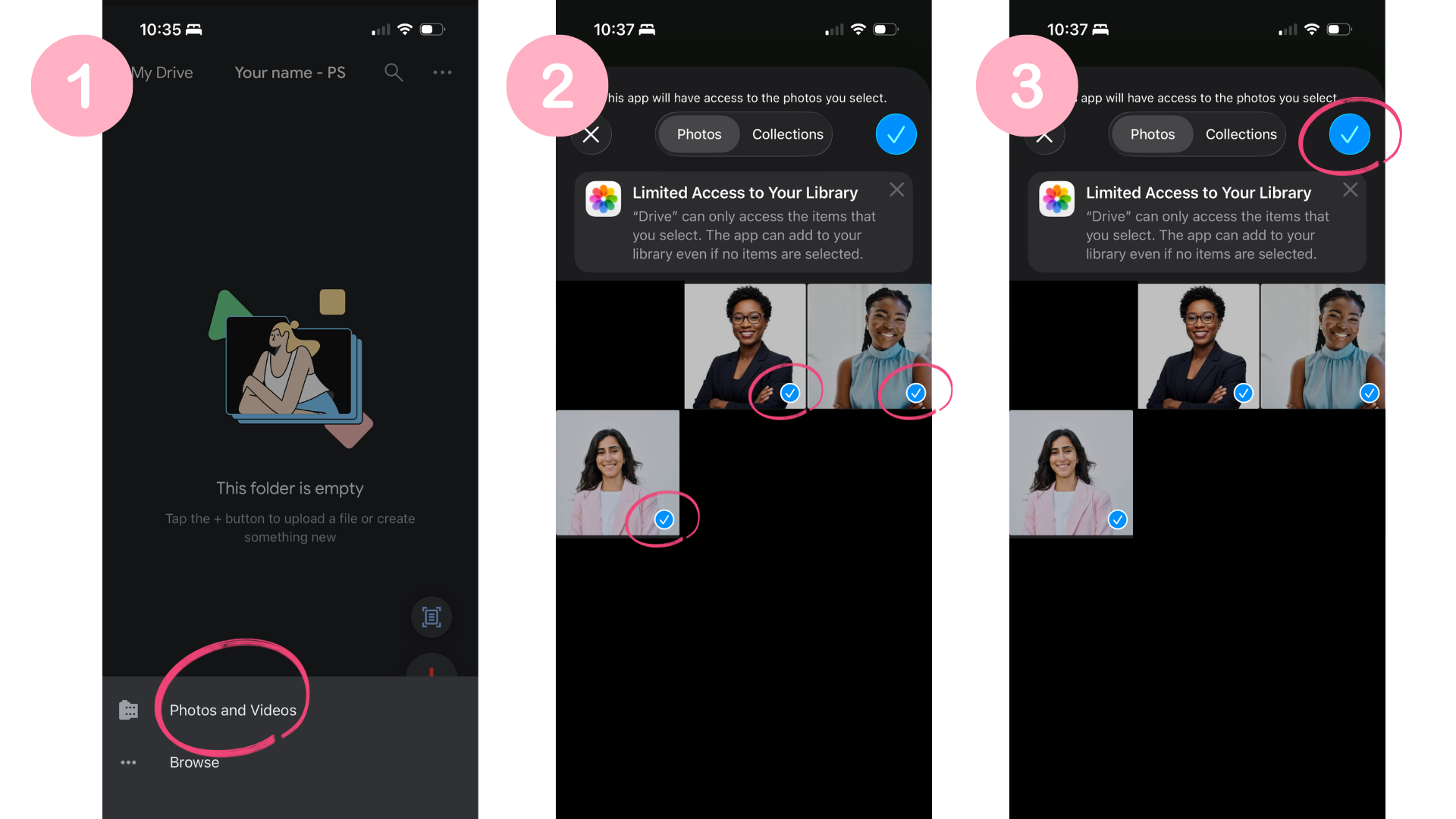
Note: After this, Google Drive may take you to a Recents screen. If that happens, select the photo(s) again from the Recents area (1,2), then tap Upload. (3)

Your photos will begin uploading automatically.
Rename Your Photos
To help keep files organized, rename your photos to the consultants name (needs to match what is in InTouch) before uploading or within Google Drive if needed.
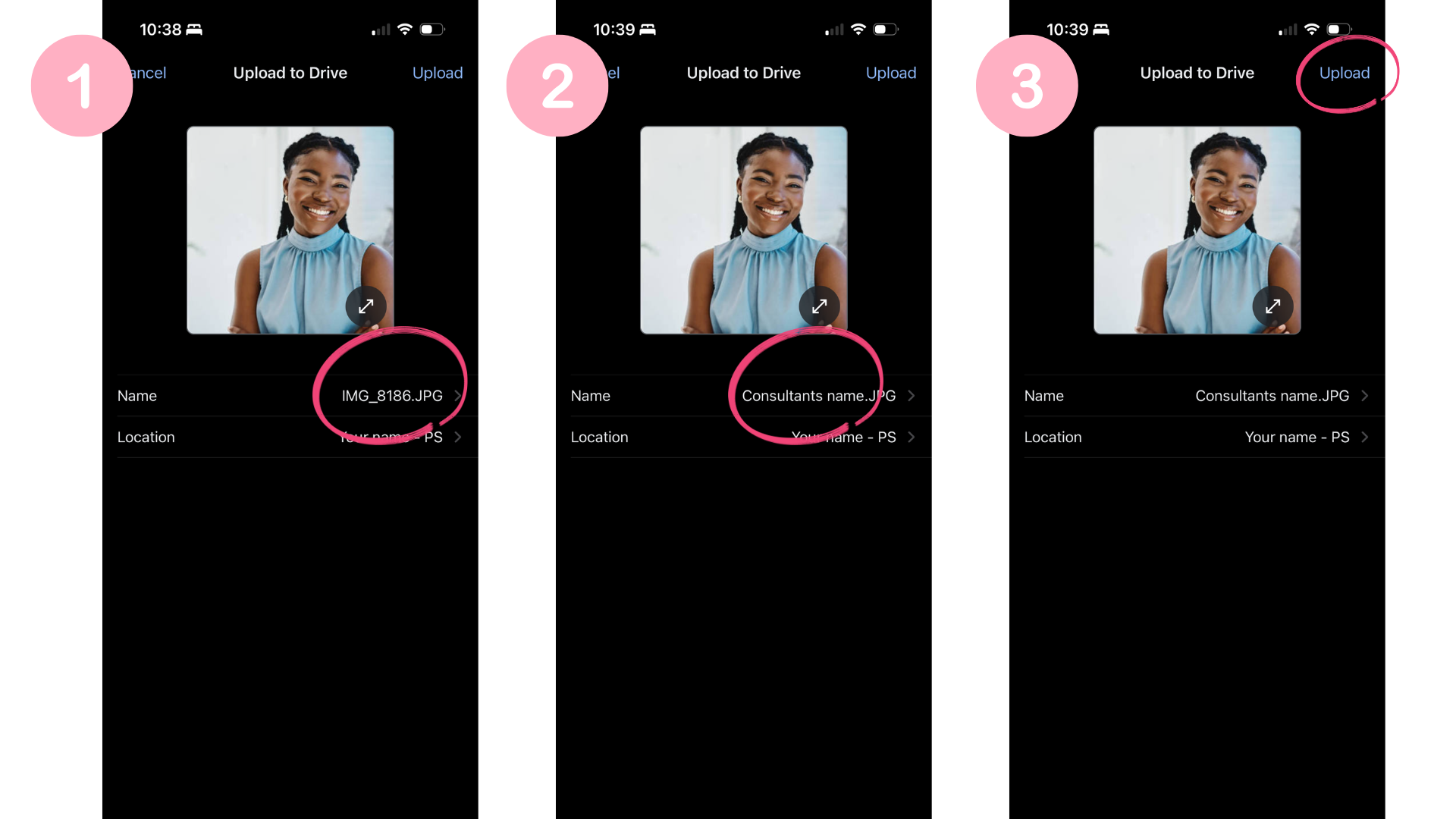
Tap the filename to rename the photo before uploading.
When renaming, keep the file extension at the end of the filename (.jpg, .jpeg, or .png).
Tap Upload to complete the process.
Confirm Your Upload
Once the upload is complete, you should see your photo(s) appear in the shared folder.
If you do not see your photos right away, pull down on the screen to refresh the folder and check your internet connection.