
How to Upload Photos to the Shared Google Drive Folder via Computer Browser
Follow these steps to upload photos from your computer to a shared Google Drive folder.
If looking for help with how to upload via the app on your phone or tablet take a look at this article: Upload using mobile app.
Access the Shared Folder
Check your email for a folder shared with you email.
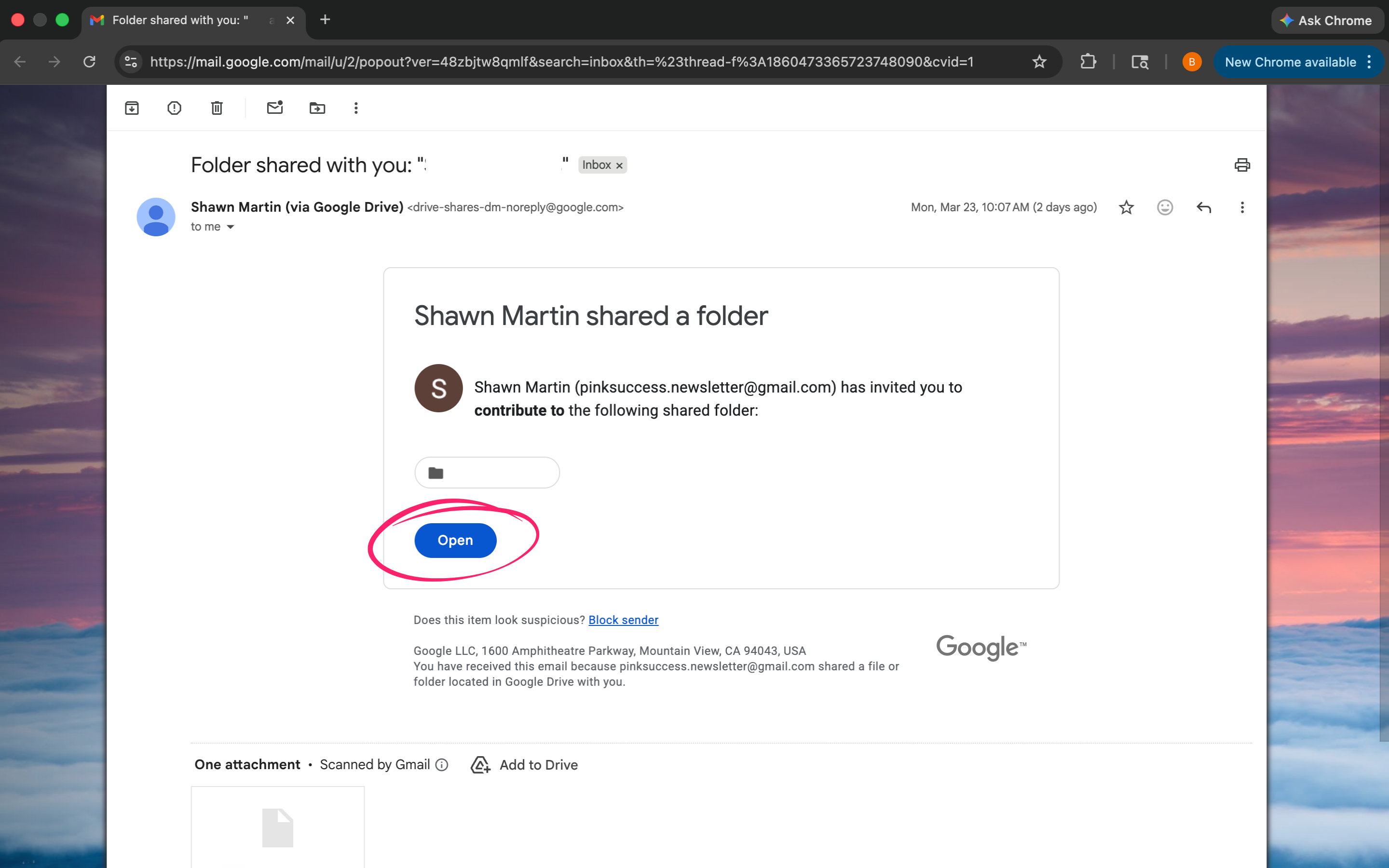
Click the “Open” or “View Folder” button in the email.
Sign in to your Google Drive account if prompted.
If you do not have a Google account, you can create one using your existing email address (it does not have to be Gmail).
Upload Files from a Computer
Option 1: Using the Upload Button
Click the “+ New” button (top left).
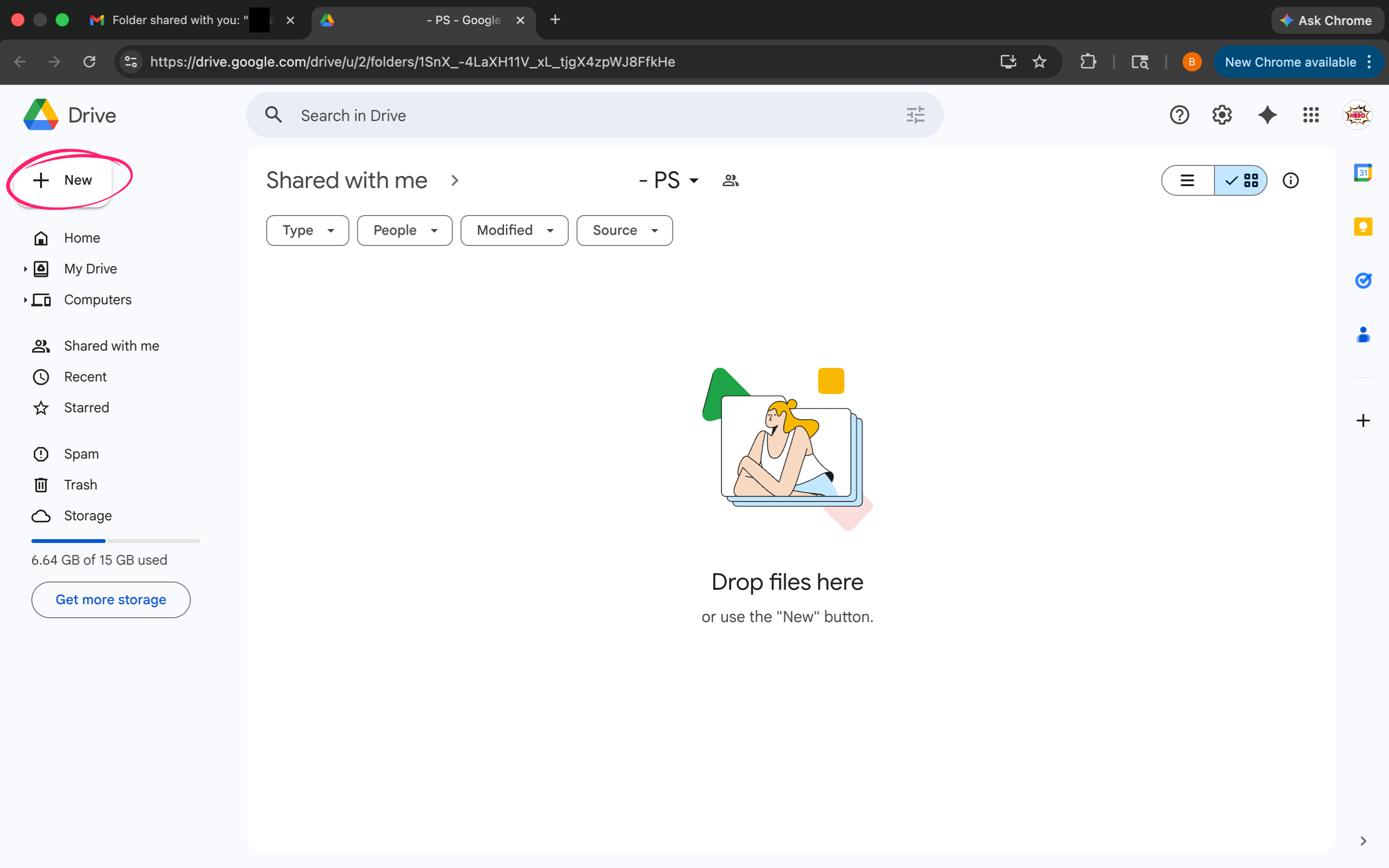
Select “File upload.”
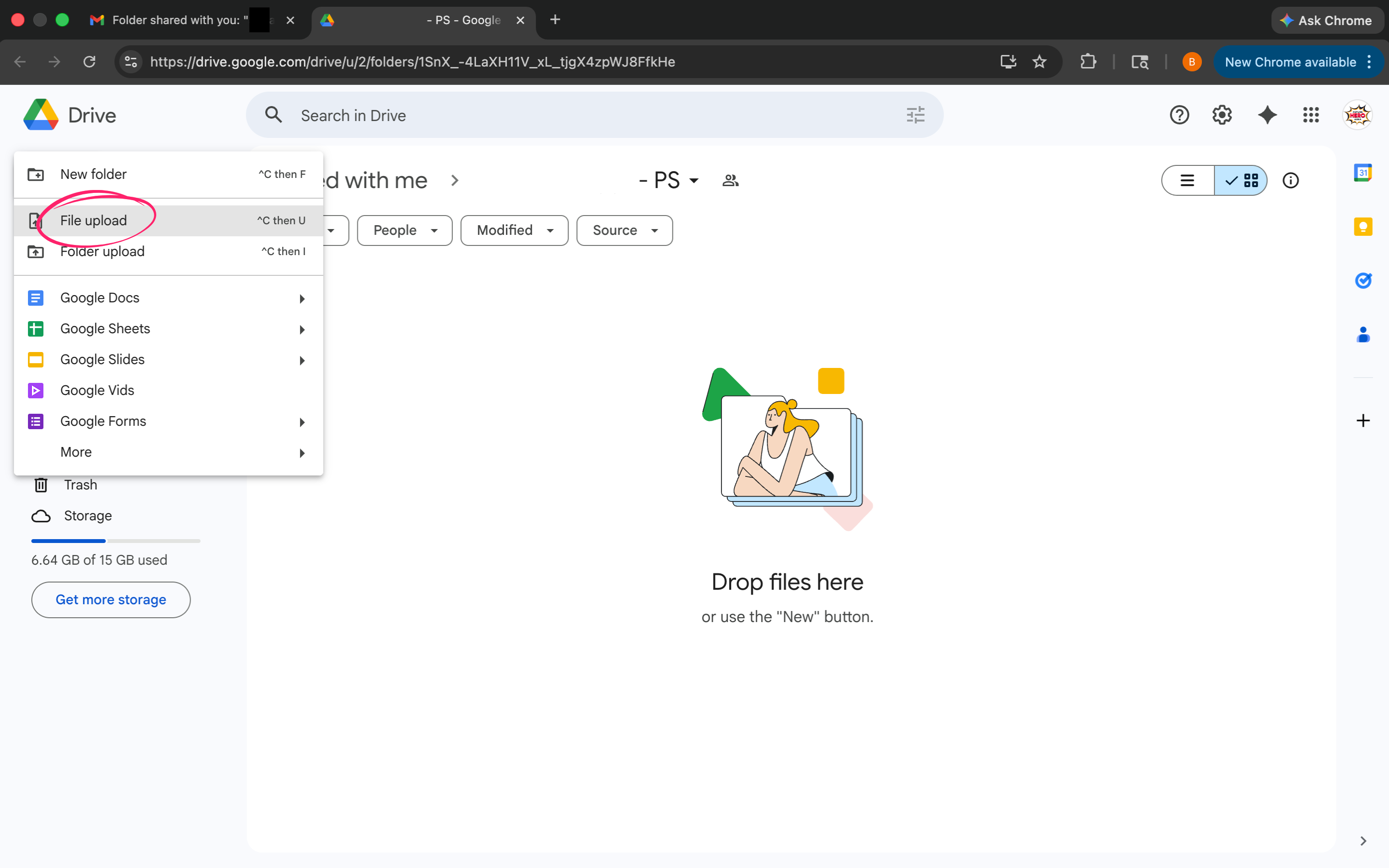
Choose your files and click Open.
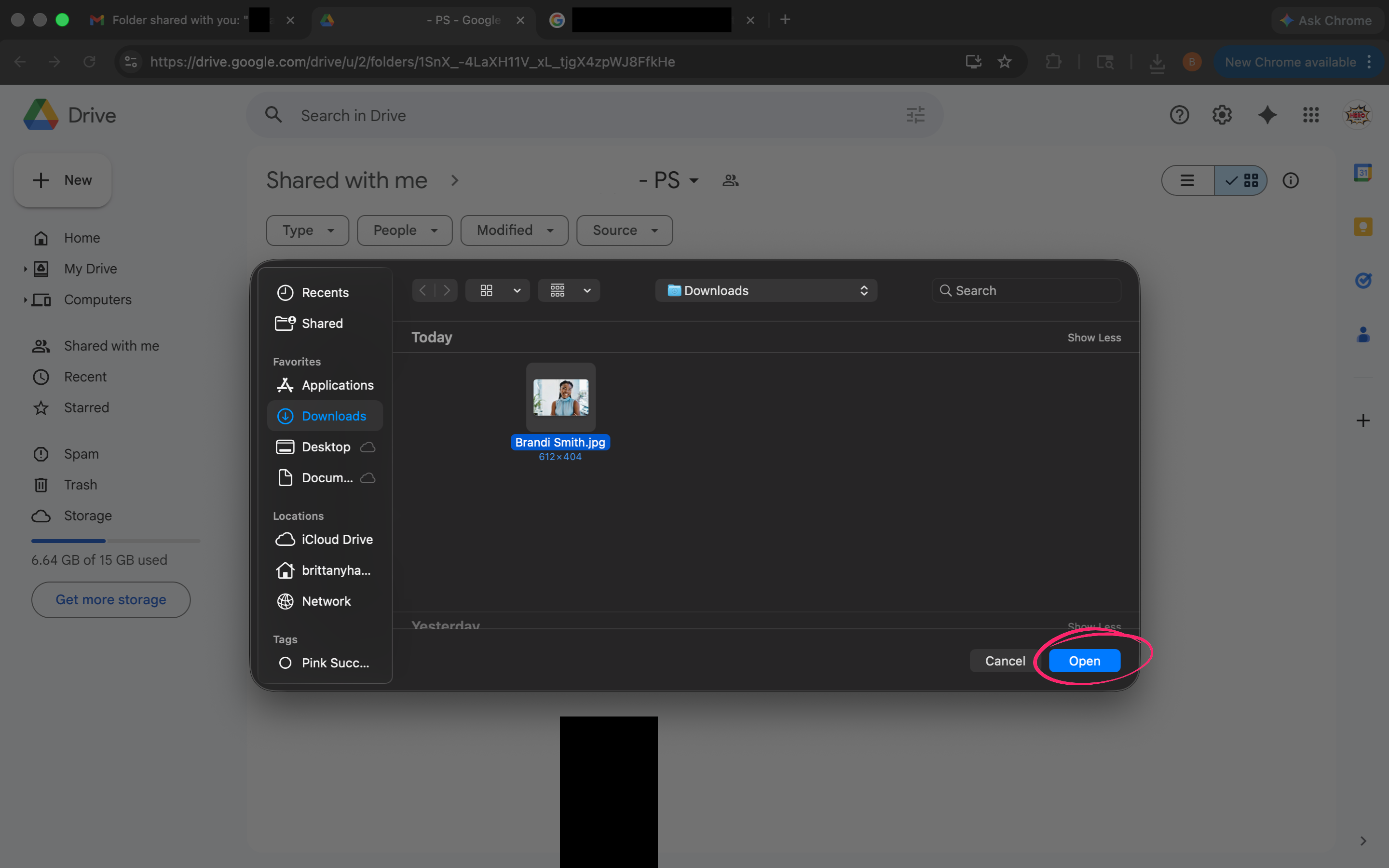
Option 2: Drag and Drop
Drag files from your computer and drop them directly into the folder.
Upload Files from a Mobile Device
Open the folder link on your device.
Tap the “+” (plus icon).
Tap Upload and select your files.
Rename Your Images
To help keep everything organized, please name your images the consultant's name as it appears on InTouch
Rename on Computer
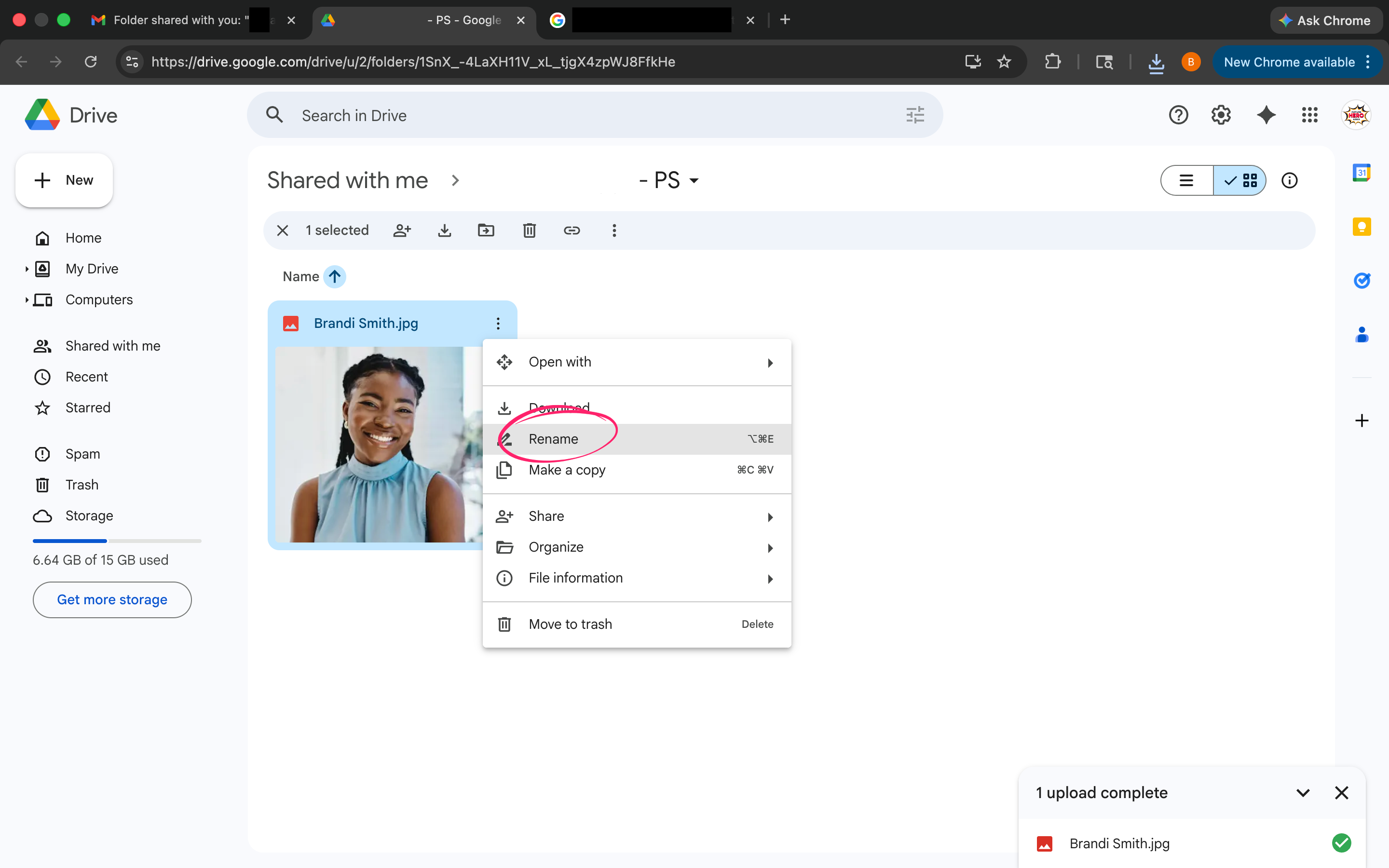
Right-click the file in the folder
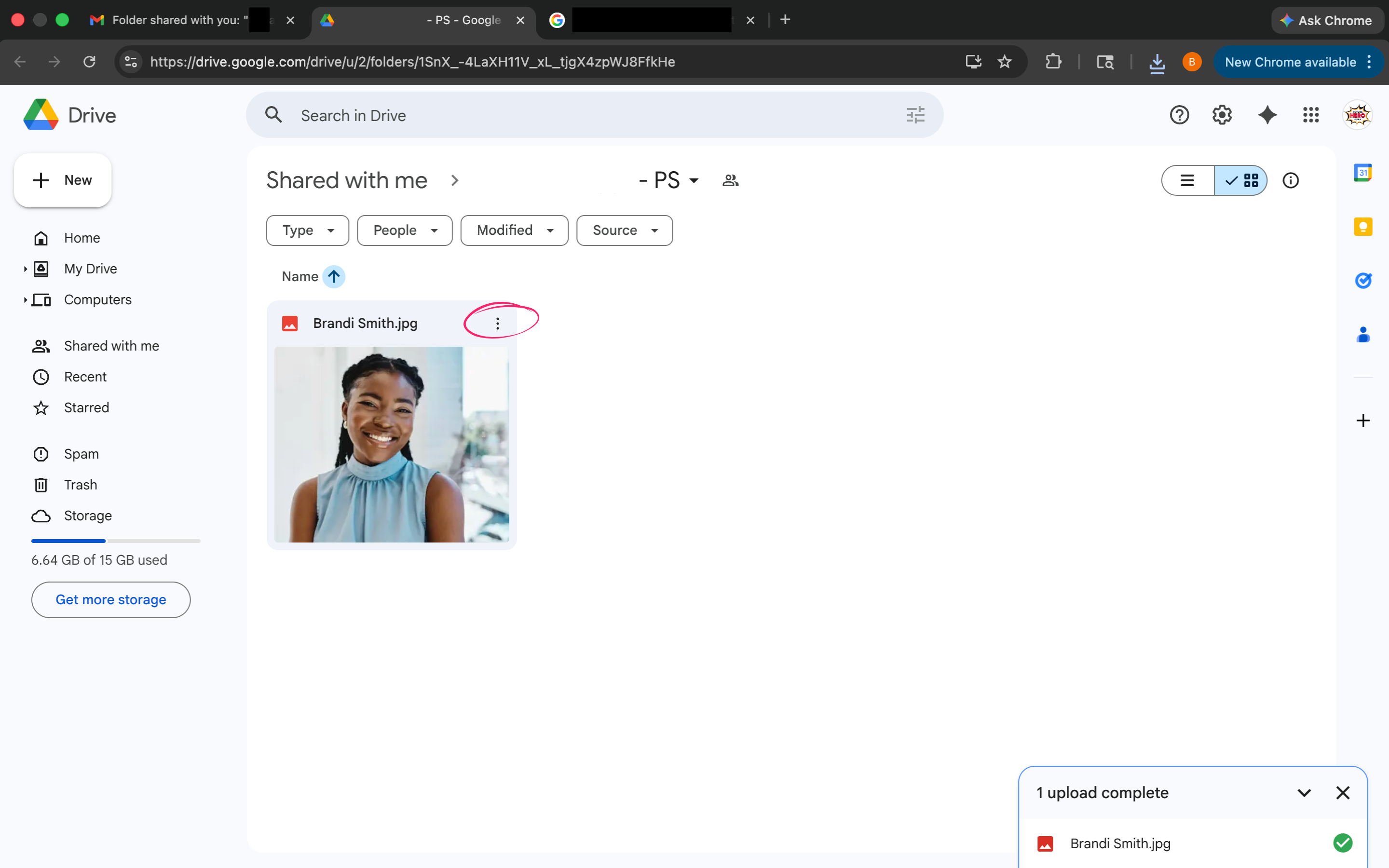
Click Rename
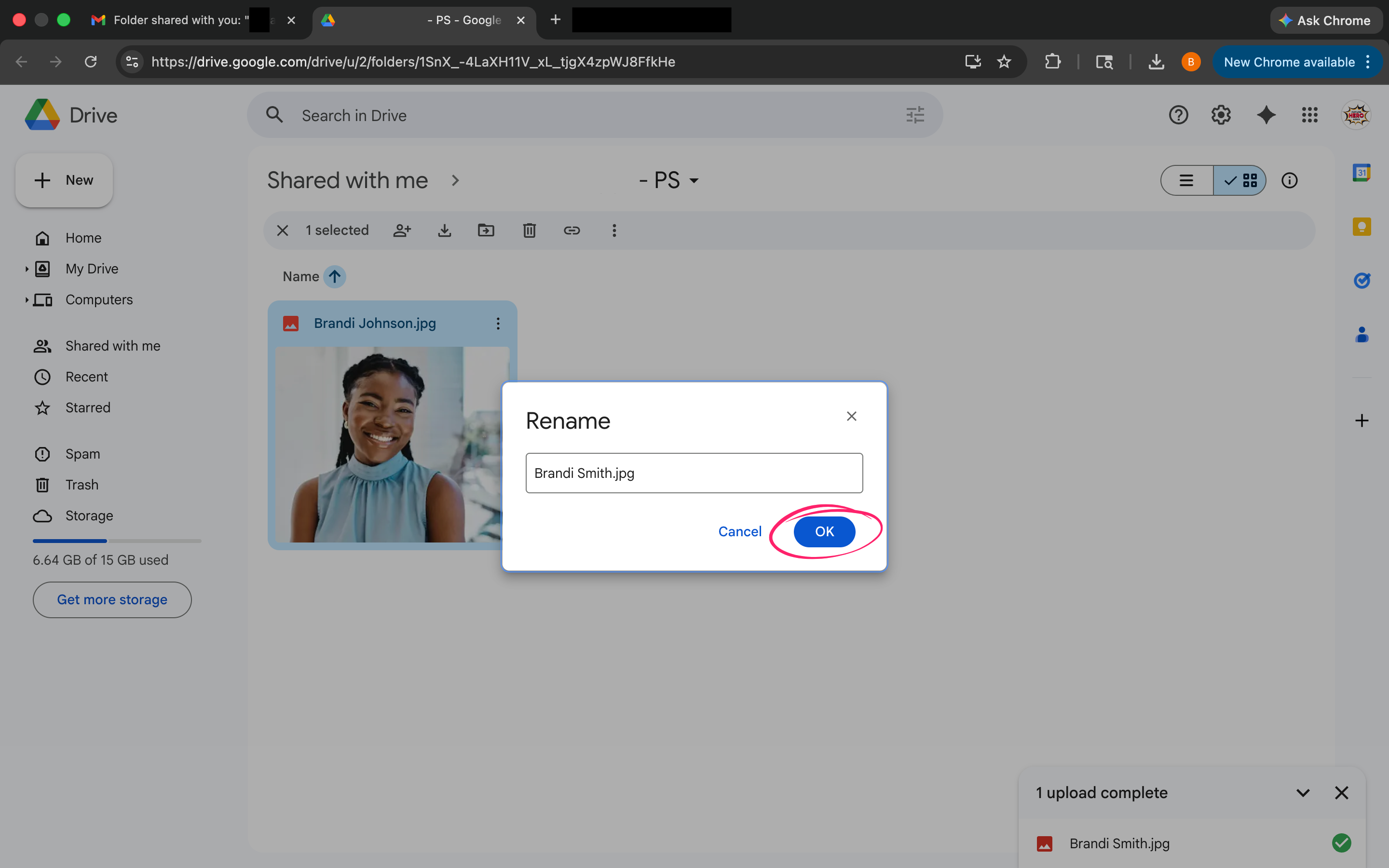
Enter the new name and click Save or OK
Rename on Mobile
Tap the three dots (⋮) next to the file
Tap Rename
Enter the new name and tap Save
⚠️ Important: When renaming your image, make sure to keep the file extension at the end of the filename (such as
.jpg,.jpeg, or.png).
Example:JaneSmith.jpg
Removing the extension may cause the image file to stop working correctly.
Find the Folder Again Later
When you need to access the folder again after your first visit:
Go to Google Drive
Sign in to your account
Click “Shared with me” in the left-hand menu
Locate and click the folder to open it
💡 Tip
Click the star icon (⭐) on the folder to add it to your Starred items for quick access next time
Best Practices
Upload clear, well-lit images.
You can upload multiple files at once.
Ensure uploads are complete before closing the page.